







Lucid Download
Lucidfor Android and Linux

Testing release · v0.0.3

The notebook that keeps up with your pen.

A fast, private notebook for writing by hand. Ink, typed text, pictures and PDFs on fifteen kinds of paper, drawn by Lucid's own OpenGL so the line stays under the nib.

Android 7.0+ · No account · Works offline · Linux testing starts shortly — get told when
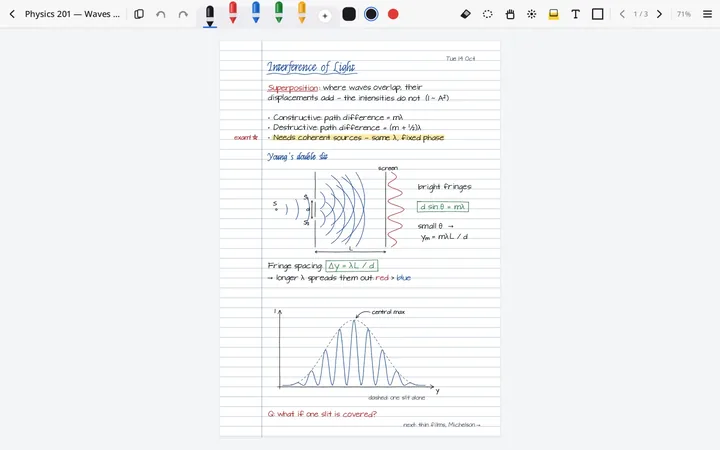
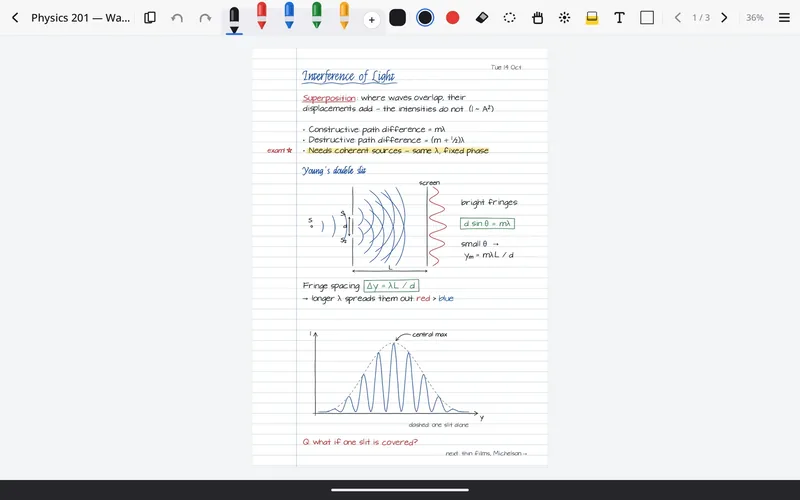
Lucid on Linux: a notebook page in a desktop window
Lucid on an Android tablet: a page of handwriting
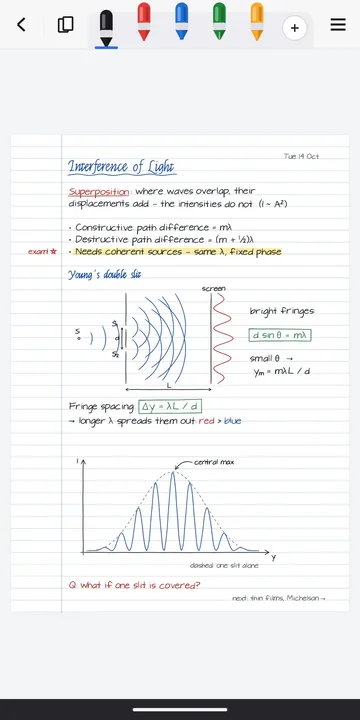
Lucid on an Android phone

Closed test on Google Play

Join the test.

Lucid isn’t in the Play Store for everyone yet. It’s in a closed test on Google Play, and you can be in it in three steps.

What testing means

  1. Join the Lucid testers group

    Google Play lets in the members of one Google group. You need a Google account.

    Join the group
  2. Become a tester on Google Play

    On your Android device, signed in with the same account, open the testing link and tap Become a tester.

    Open the testing link
  3. Install Lucid from Google Play

    Install it from the same page. New test versions arrive as ordinary updates.

No Google account? Email us and tell us your device. On Linux, testing starts shortly — email us to be told when.

Write

Ink that feels like ink.

Three pens, a highlighter, a laser and a shape tool that tidies what you draw, with pressure from your stylus and a renderer built to keep the line under the nib.

Three pens, each with its own hand

Pens live in a tray along the top. Add as many as you like; each keeps its own style, colour and thickness, and a pen you no longer want is one press from gone.
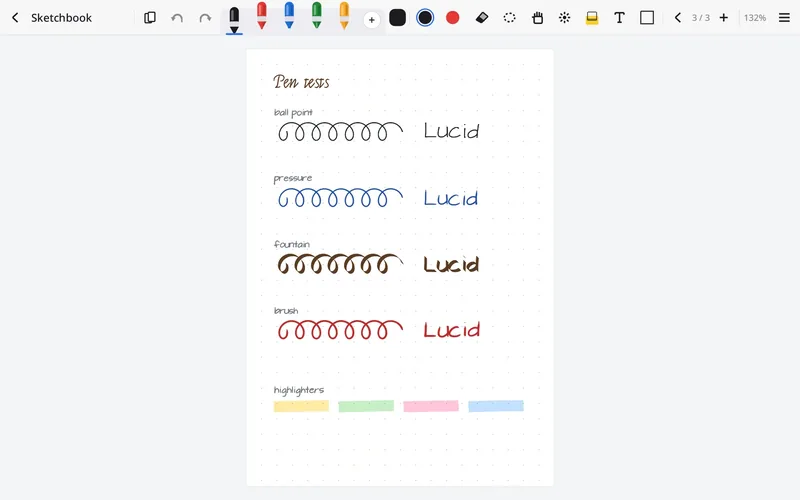
  • Ball point — an even line, smoothed into clean curves when you lift.
  • Pressure — the line swells with how hard you press; a slider sets how far it swells.
  • Fountain — a nib held at an angle: fine on the upstroke, broad across.
  • Thickness is measured on the screen or on the paper: keep a line the same on screen at any zoom, or true to the page.
Ball point, pressure and fountain pen strokes side by side, and four highlighter colours
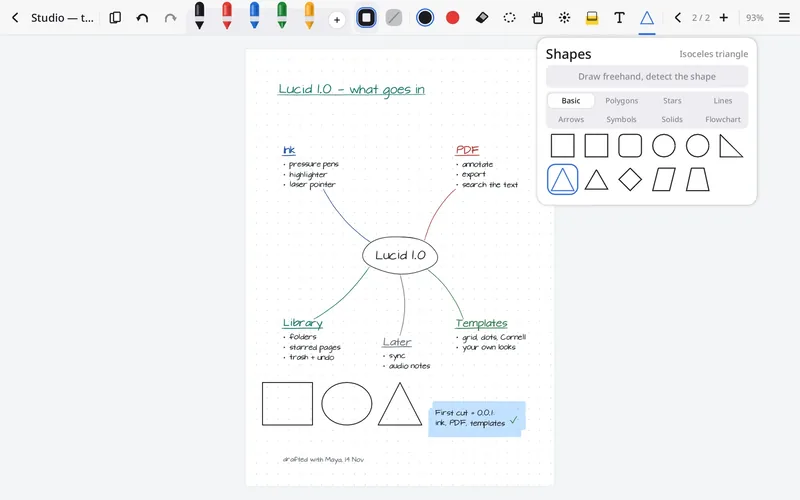
  • The shapes palette, with a rectangle, an ellipse and a triangle drawn on the page

    65 shapes

    Sixty-five shapes in eight groups — basic, polygons, stars, lines, arrows, symbols, solids and flowchart — outlined, filled or both. A shape stays a shape: change its kind, outline or fill at any time.
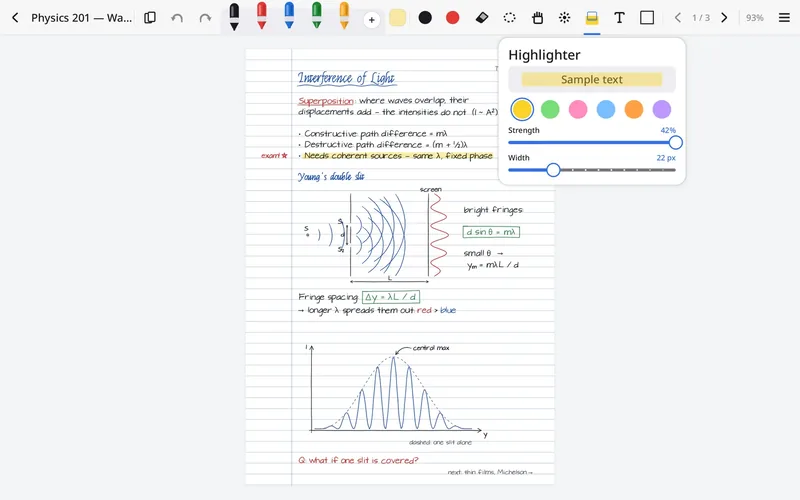
  • The highlighter card open over a highlighted lecture page

    Highlighter

    A see-through wash that keeps the writing under it readable, with its own colour, width and strength.
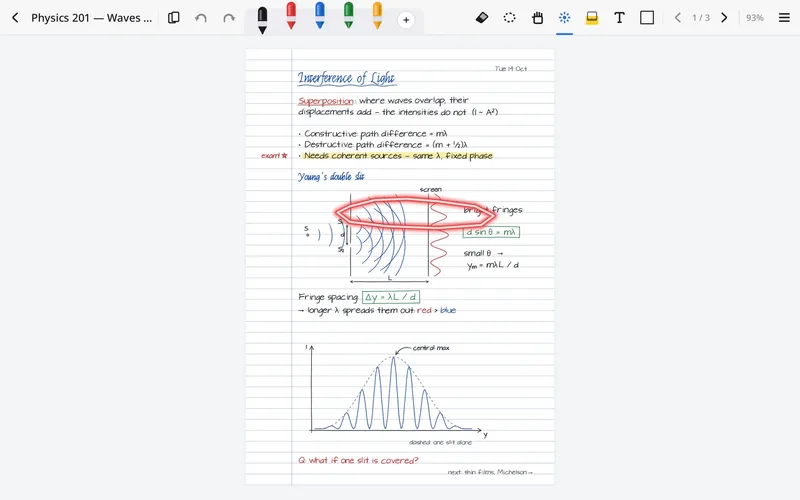
  • A red laser-pointer trail circling a diagram

    Laser pointer

    A glowing red trail for showing something on screen. It fades after as long as you choose, or stays until your next stroke — and it is never saved.
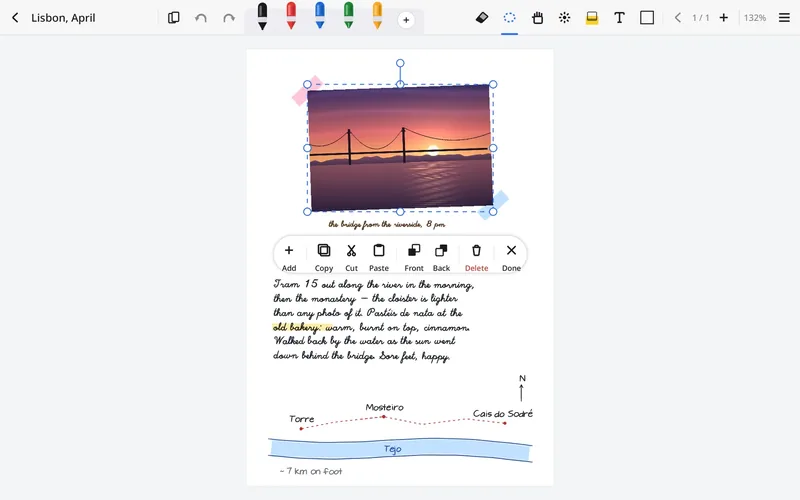
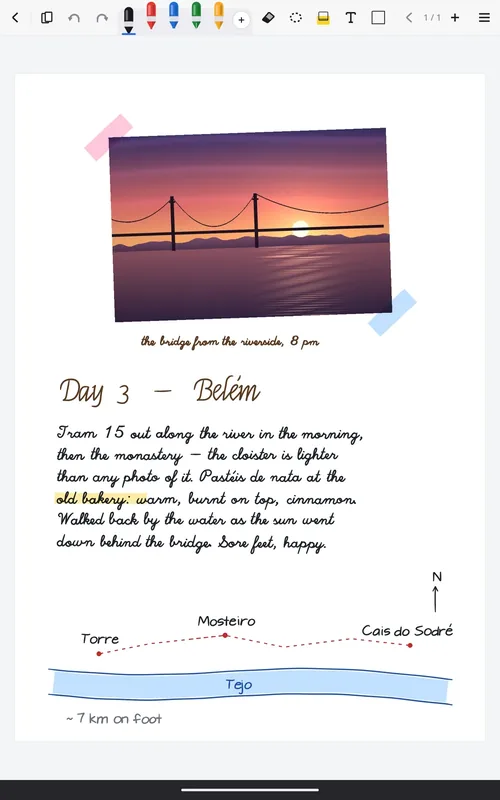
  • A photo on a journal page, selected, with its corner and edge handles

    Pictures

    PNG and JPEG pictures from your gallery, your files, a drop or a paste. Select one and pull its corner and edge handles to resize it, or drag it anywhere on the page.
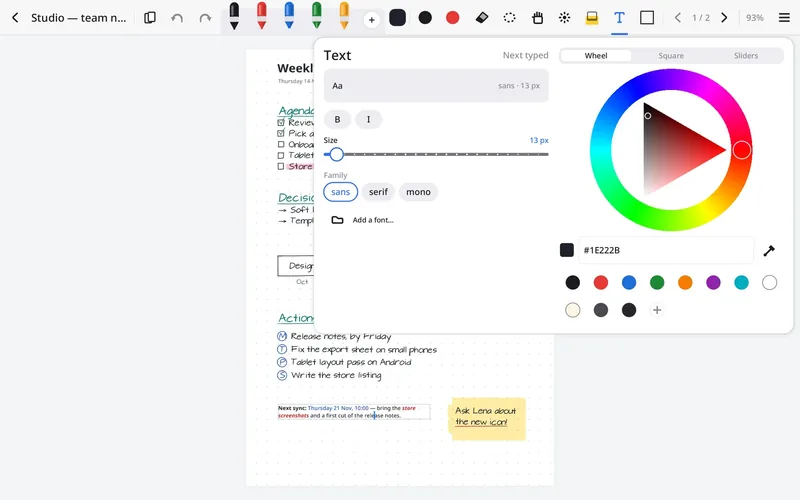
  • A typed text box with bold, italic and coloured words, and the text card open

    Typed text

    Text boxes you size by dragging, with each run of words in its own font, size, colour, bold and italic. The text card styles new boxes, the next words you type, or the selection. Add any .ttf or .otf font; right-to-left text is put in order.

  • Fast inkAndroid

    While you write, Lucid can draw ink straight to the screen instead of waiting for the next whole frame. On by default where the display supports it, with a switch in settings.

  • Draw a shape, get a shape

    Turn on Draw freehand, detect the shape and sketch: lines, arrows, triangles, rectangles, rhombuses, parallelograms, trapeziums, pentagons to octagons, circles and ellipses come out clean, at the angle you drew them. One undo gives your drawing back.

Select & edit

A selection tool that does the work.

Loop it or tap it, pick what kind of thing to catch, then move, stretch, mirror, rotate and restyle — ink, text, pictures, shapes and PDFs alike.

Lasso, tap, and dig

Draw a loop and Lucid takes only what falls entirely inside it — every point of every stroke is checked, so the word next door stays where it is.
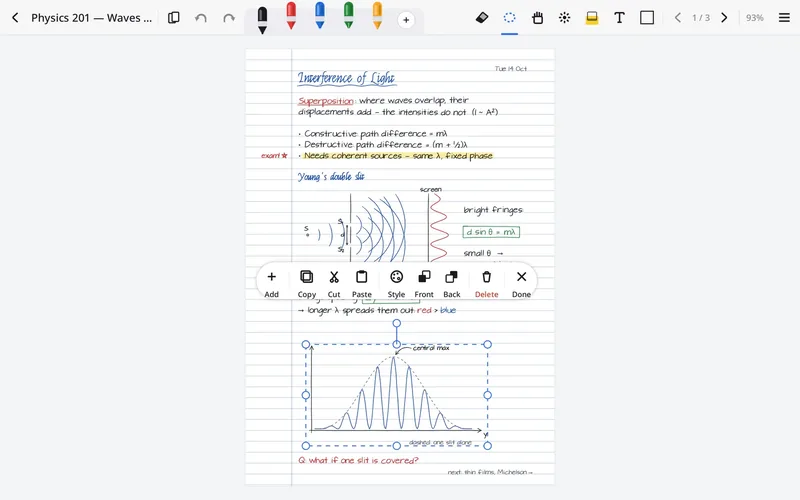
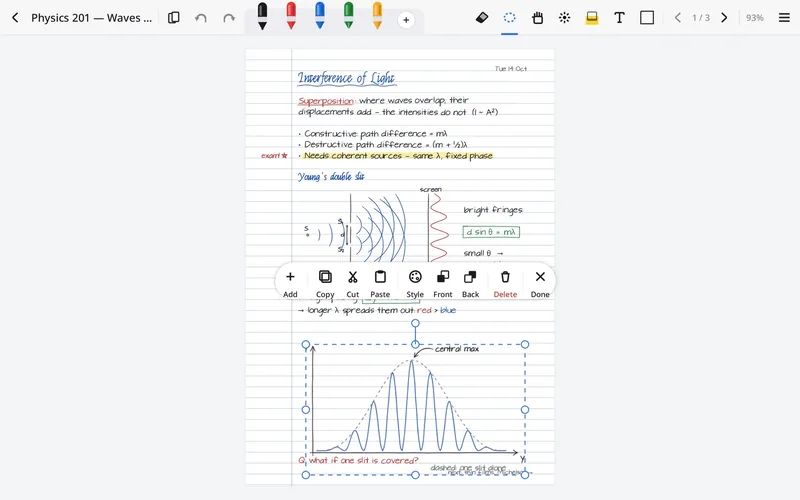
  • Tap to take the topmost thing under the pen; tap again in the same spot to dig to the one beneath.
  • Add keeps the selection open: loop or tap more in, or tap to take one out. Shift does the same with a keyboard.
  • What a gesture picks up: switch Strokes, Shapes, Images, PDFs and Text on or off — select only your handwriting over a PDF in one press. Lasso, tap and Select all obey it.
A lasso selection around a graph, with its handles and the selection bar: Add, Copy, Cut, Paste, Style, Front, Back, Delete

Handles

  • Four corners scale freely, four edges stretch one way, and a rotate grip turns the whole selection about its centre.
  • Drag past the opposite side to mirror it.
  • Ink thickens and thins with the scale; a single shape is rebuilt at its new size, so its outline stays true.
  • Text boxes re-wrap live as you drag their sides.
  • Handles stay easy to grab on tiny or thin selections.

The selection bar

  • Add, Copy, Cut, Paste, Style, Front, Back, Delete, Done.
  • Each move, scale or rotation previews live and lands as one undo step.
  • A Paste chip appears on the page whenever there is something to paste.

Restyle what you already wrote

  • Turn existing ink into Ball point, Pressure or Fountain, and change its thickness and colour.
  • Change a shape’s kind, its outline and its fill.
  • Make text bold or italic, bigger or another colour.
  • Mixed selections say Mixed rather than guessing.

Copy, paste, and other apps

  • Copies carry their pictures with them, so they paste into another notebook intact.
  • Paste again and each copy steps neatly down and across.
  • Paste a picture or an image file from another app onto the page.
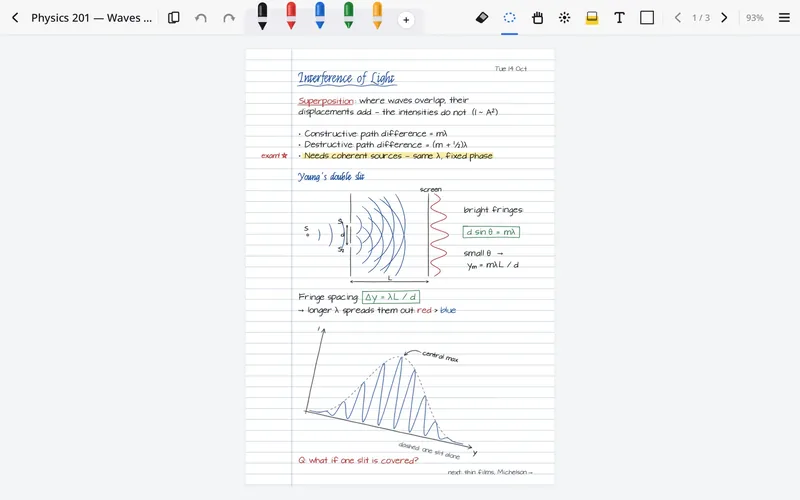
  • The selected graph being scaled from its corner handle

    Scale, stretch, mirror

    Pull a corner to scale, an edge to stretch, or drag right through to mirror. One gesture, one undo.
  • The selected graph mid-rotation, its handles stepped aside

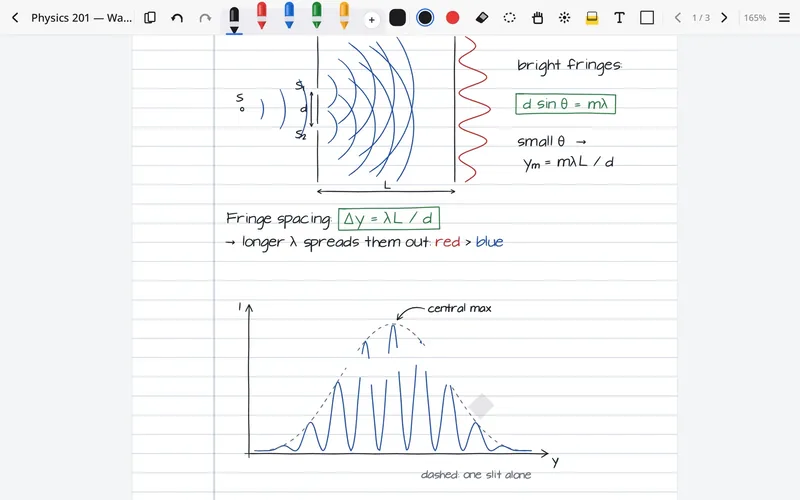
    Rotate

    Turn the rotate grip and the selection turns about its centre. The box and bar step aside while it turns, so you see exactly what you get.
  • The rub-out eraser mid-sweep, cutting a gap through a graph

    Two erasers

    Rub out takes only what the eraser passes over, from 6 to 120 px wide; Cross out lifts whole strokes. Choose what a sweep takes. Turn the stylus over to erase, or hold its barrel button.
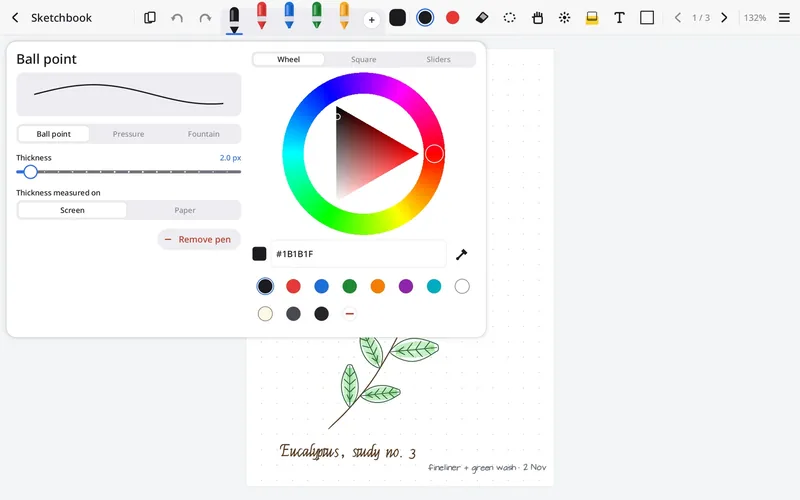
  • The pen card: pen kinds, thickness, a colour wheel and saved swatches

    Colours and eyedropper

    A wheel, a square or sliders, a hex code, up to eleven saved colours per notebook, and an eyedropper that picks a colour off the page.
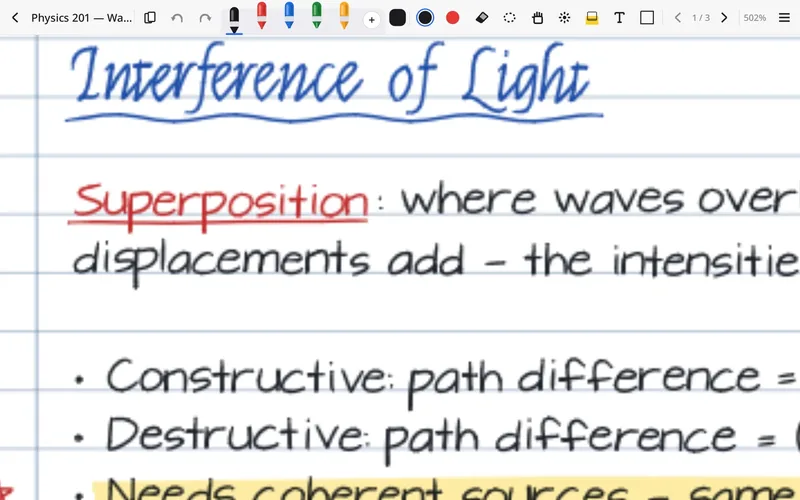
  • Handwriting at 500% zoom: smooth strokes that swell and thin with pressure

    Zoom, pan and undo

    Pinch to zoom and pan with a finger while the pen keeps writing. Fit the page, fit all the ink, or show it at actual size. Every page keeps its own undo history.

  • Choose what to catch

    Strokes, Shapes, Images, PDFs, Text — the choice is remembered between sessions.

  • Style card

    Restyle ink, shapes and text in place, with tabs only for what you selected.

Sections & pages

A notebook with real structure.

Sections of pages, a contents rail you can drag things around in, an organiser that shows every page at once, and a trash that gives everything back.

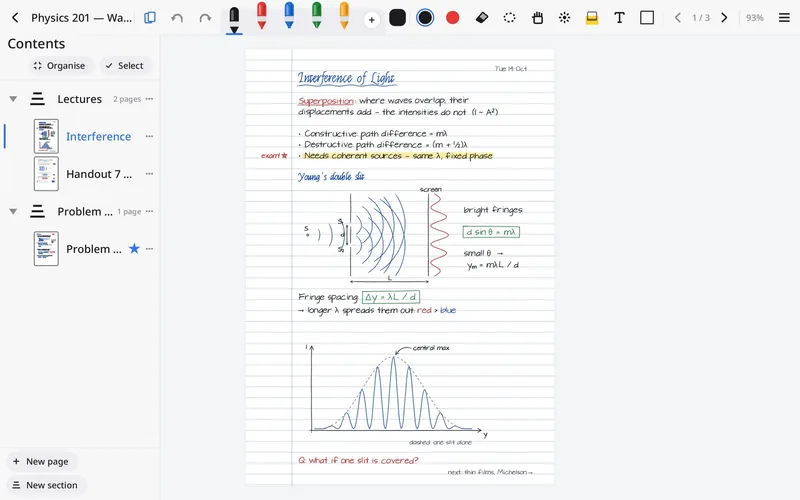
Contents: sections and pages

Open Sections and pages for a rail of every section and page with its picture. Fold a section away, rename anything in place, and press and hold a row to drag it — reorder pages, move them into another section, or drop them on the trash.
  • New page goes right after the one you are on and takes its paper; Page before and Page after put it exactly where you want.
  • New section, Duplicate, Rename, Star, Paper, Export and Move to trash from any row’s menu, or for every row you pick.
  • On the last page the next arrow turns into +. Next and previous run straight across sections.
The contents sidebar: two sections, Lectures and Problem sets, with their pages and a starred page

Copy pages between notebooks

  • Copy, Cut and Paste whole pages or sections.
  • Lucid’s page clipboard survives switching notebooks, and carries every picture and PDF the pages use.

Change many pages at once

  • Pick pages or whole sections, then set their size, ruling or colours in one go.
  • The button says exactly what will happen: Rule 12 pages, Resize 3 pages.

A trash that forgives

  • Deleted pages and sections wait in the trash, grouped by where they came from.
  • Put back returns them. Delete for good asks first, then wants a one-second hold.

Undo, page by page

  • Every page keeps its own history of ink and paper changes, and it survives turning the page.
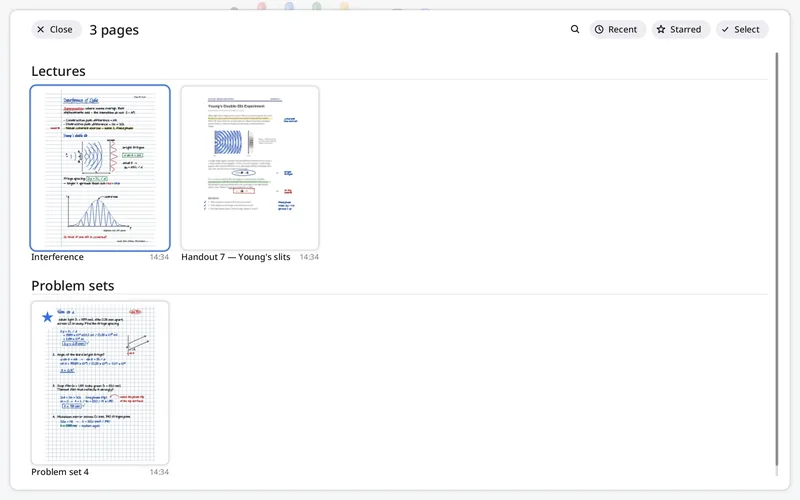
  • The organiser: every page as a grid of pictures, grouped by section

    Organiser

    Every page as a grid of pictures, under section headings. Pinch to change the size. Pick several pages and carry them anywhere — the status line says where they will land and into which section.
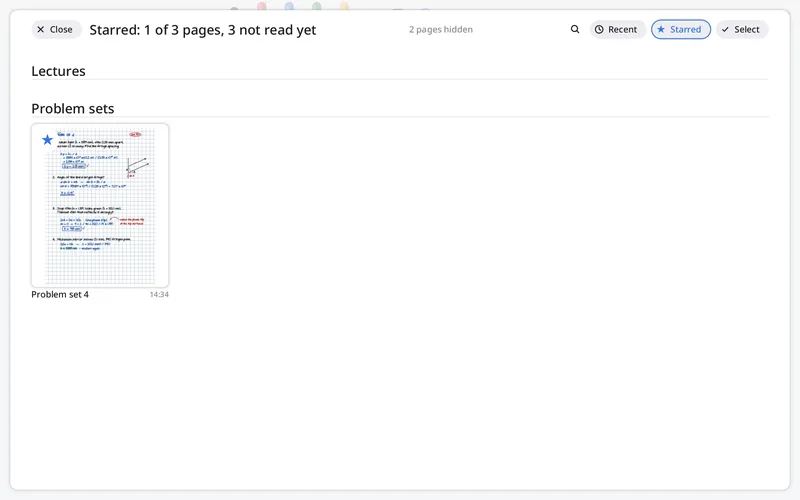
  • The organiser filtered to starred pages

    Stars, Recent and search

    Star pages and filter to them, show only pages written in the last seven days, or find a page by its name or typed text. Hidden pages are counted, never quietly dropped.
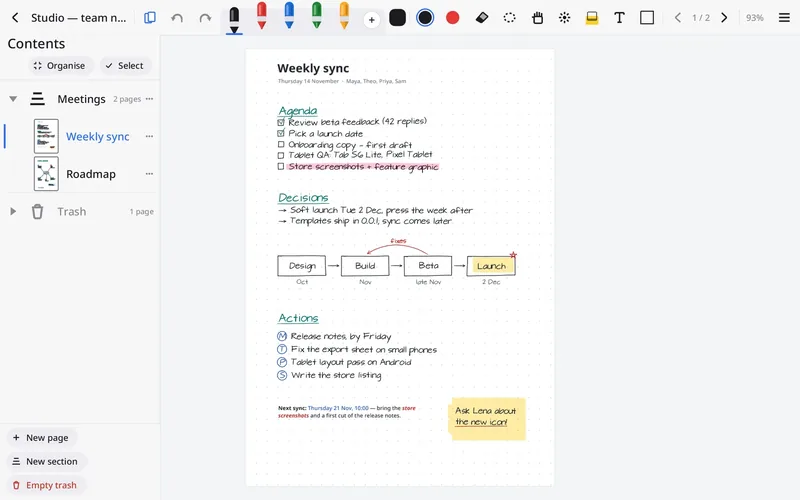
  • A notebook's contents sidebar with its own trash holding one page

    A trash in every notebook

    Deleted pages and sections wait in the notebook’s own trash, under the section they came from, until you put them back.

  • Move pages between notebooks

    Copy pages or a whole section, open another notebook, paste. Pictures and PDFs come along.

  • Paper for many pages

    Size, ruling, paper, surround and border for any number of pages or whole sections at once.

Paper & templates

Paper the way you like it.

Fifteen rulings with their own settings, every common page size or an endless canvas, colours that belong to each page, and your own presets for every new notebook.

Fifteen kinds of paper

Plain, Ruled, Margin, Cornell, Writing, Music, Grid, Dotted, Graph, Isometric, Iso dots, Hex, Polar, Semi-log and Log-log.
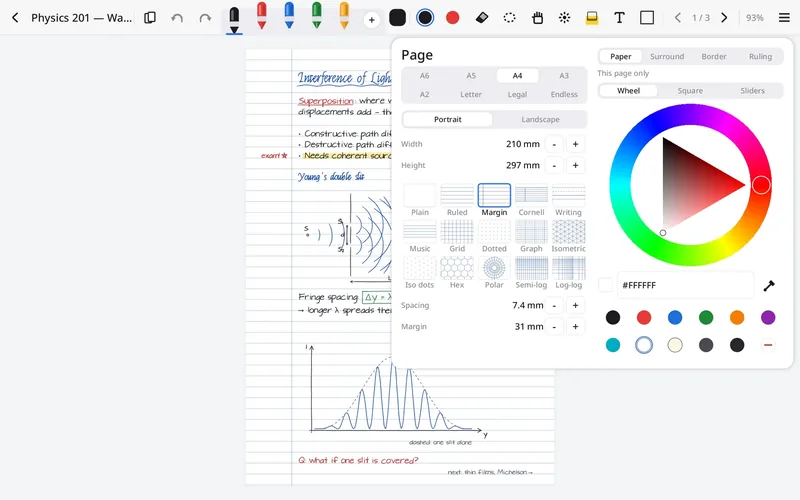
  • Each has its own settings: spacing, line gap, x-height, rings, decades, columns and rows, a strong line every so often, a margin, a cue column.
  • Choose the colour of the lines as well as the paper.
The page setup card showing the fifteen rulings
  • Plain
  • Ruled
  • Margin
  • Cornell
  • Writing
  • Music
  • Grid
  • Dotted
  • Graph
  • Isometric
  • Iso dots
  • Hex
  • Polar
  • Semi-log
  • Log-log
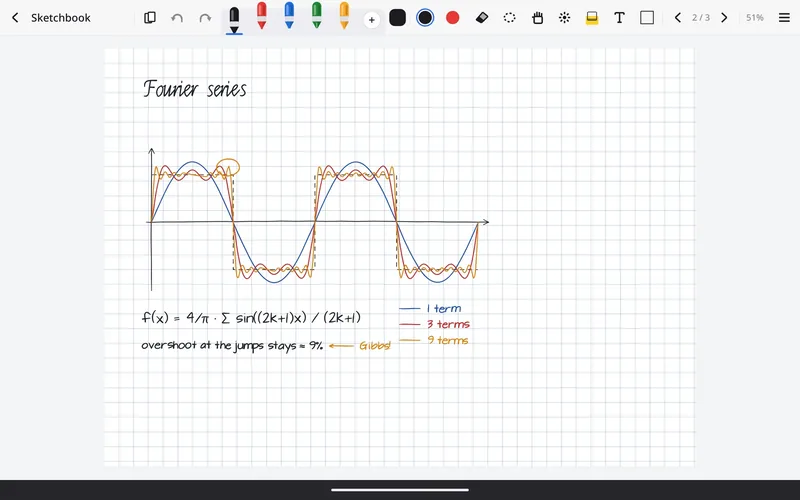
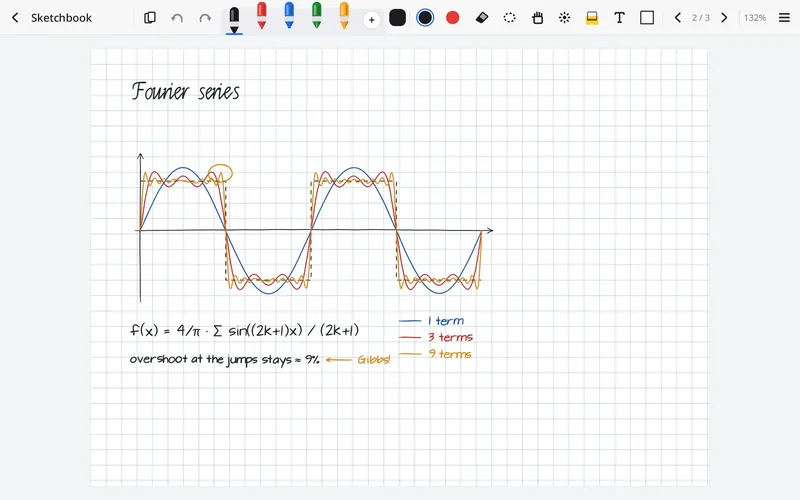
  • A landscape grid page with Fourier partial sums plotted by hand

    Sizes and orientation

    A6, A5, A4, A3, A2, Letter and Legal, any custom size from 20 to 2000 mm in millimetres or inches, or Endless — a page with no edges. Portrait or landscape.
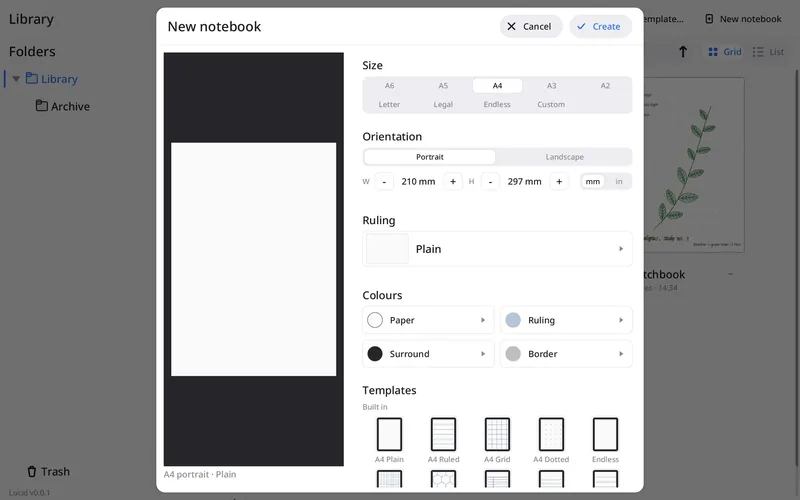
  • The New notebook screen: size, orientation, ruling, colours and saved presets

    Presets

    Pick size, orientation, ruling and colours on a screen with a live picture of the page, then save the combination as a preset — up to twenty-four of your own. Set any one as the default for New notebook, update it to the current settings, and undo a delete.

  • Paper, surround, border

    Four colours belong to each page: the paper, the surround it sits on, its border and its ruling. A new page carries on the look of the page beside it.

  • Actual size

    Show the page at its real size, worked out from your display’s own density — and set the density yourself if the display gets it wrong.

PDFs & export

PDFs in. PDFs out.

Write on any PDF, find words inside it, and send your notes out as a PDF with real vector ink and real text — or as pictures, or as a pack for another device.

Write on PDFs

Bring a PDF in and choose how it lands: Page per sheet gives each PDF page a sheet of its own size, All on one sheet lays the whole document down a single sheet.
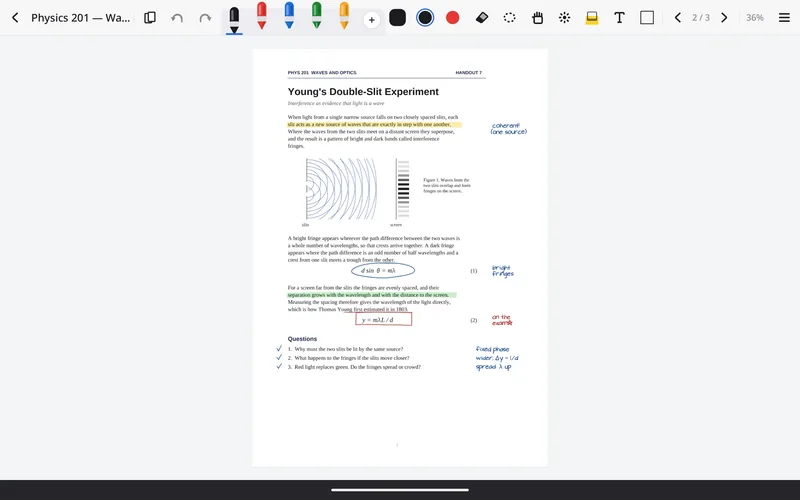
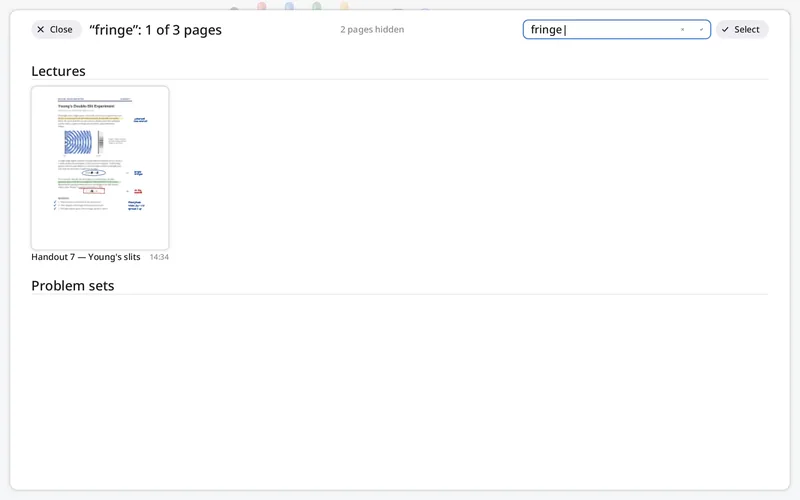
  • PDF pages stay vector: zoom to 6400% and the lines are still sharp, and it costs no more memory than at 1600%.
  • Lucid’s own PDF engine, written from the specification: shadings, scanned fax and JBIG2 pages, Type 1, TrueType, CFF and Type 3 fonts. It was run over 257,850 pages of real-world PDFs without a crash.
  • Big documents render off the drawing thread, so the pen never waits for them.
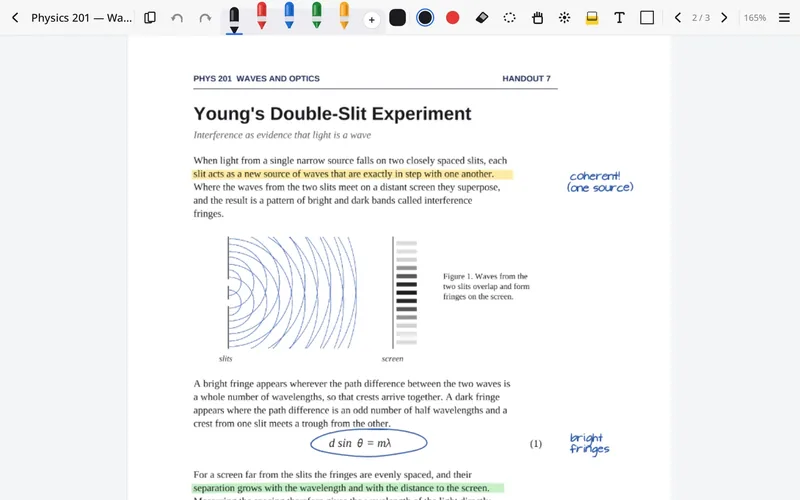
An imported PDF handout, highlighted and annotated by hand
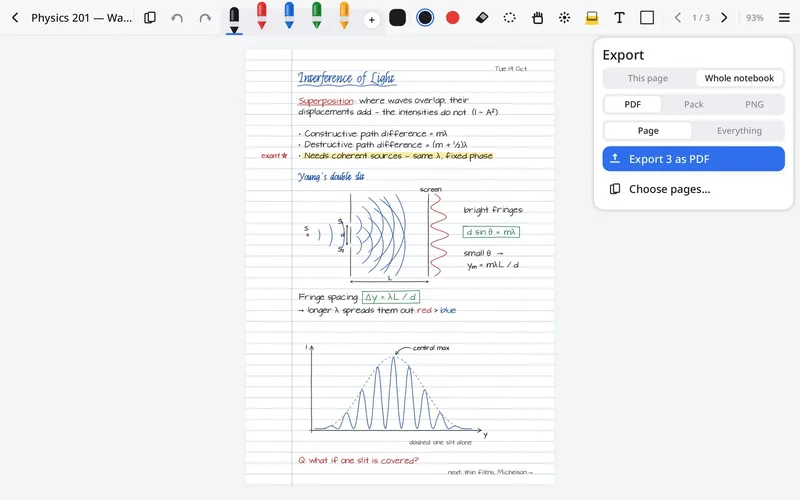
  • The export card: this page or the whole notebook, as PDF, pack or PNG, the page or everything

    Export to PDF

    The whole notebook, this page, or the pages you pick. Strokes leave as vector paths, text as real searchable text in embedded fonts, ruled paper as vectors, and imported PDF pages as their original vector pages.

  • Page or Everything

    Export each sheet at its edges, or Everything: a page grows to take in ink you drew past its edge, with a neat margin.

  • Pictures

    Export pages as PNG at 192 dpi — on Android, Send to app goes straight to the share sheet without filing a copy in Downloads.

  • Packs

    Export notebooks and folders as one .lucidnotes file. Import it on another device choosing which sections and pages, into a new notebook or one you have. Nothing is ever overwritten.

Drag, drop & share

Bring anything in, any way you like.

Drag pictures and PDFs from your gallery or file manager straight onto a page, share from any app, or drop files on the window — Lucid works out what each one is.

Drag in from other apps

On Android, put Lucid side by side with your gallery or file manager — split screen or a floating window — and drag pictures or PDFs onto the page.
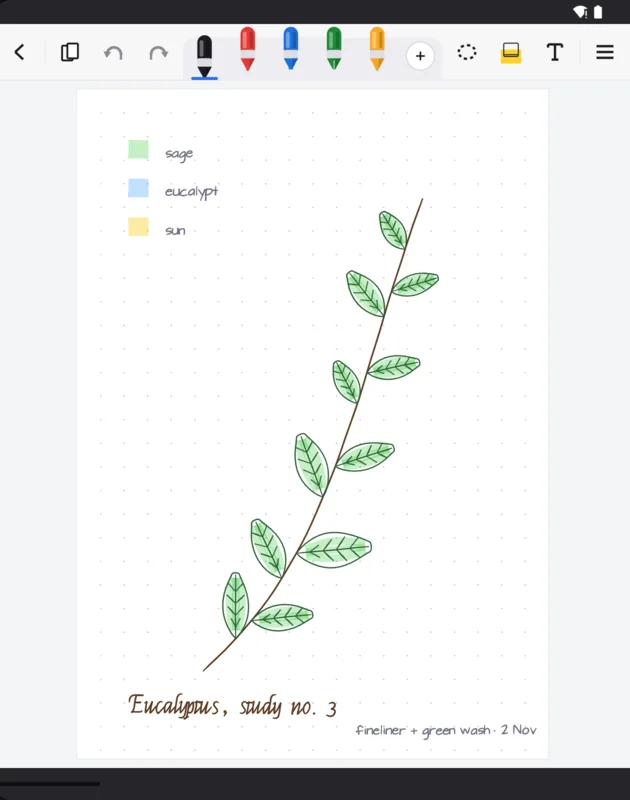
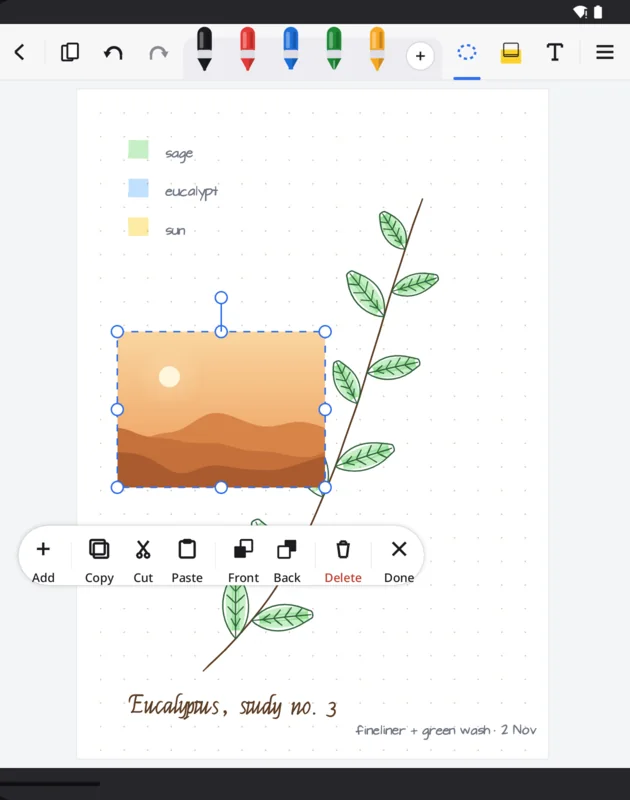
  • A picture lands exactly where you drop it; several land as a neat column down the page.
  • A PDF asks how should it land? — Page per sheet, or All on one sheet — and waits for your answer.
  • Dropped and shared PDFs are saved into your library first, so nothing is lost if the other app goes away.
Drag a photo from your gallery straight onto the page.

What lands as what

  • PNG, JPEG → a picture on the page, movable and resizable.
  • PDF → pages or one long sheet, your choice.
  • TTF, OTF → a new font for your text boxes.
  • .lucidnotes → the pack import, to choose what comes in.
  • Files are recognised by their contents, not their names.

Share to Lucid

  • From any Android app: pictures, PDFs and fonts, one or many at once.
  • Works whether Lucid is open or not. On the library screen, pictures and PDFs wait until you open a notebook.

On Linux

  • Drop files onto the window, or images straight out of a browser page.
  • Drop a picture or PDF on the library and it becomes a new notebook named after the file.
  • Import a document and Add a font use your desktop’s own file dialog.

Paste

  • Paste a picture, or a copied image file, straight onto the page.
  • How should it land?

    Every incoming PDF gets the choice, and the question never times out on you.

  • Share from any appAndroid

    Pictures, PDFs and fonts from your gallery, browser, mail or files.

  • Drop on the windowLinux

    Files from your file manager or images from a browser, onto a page or onto the library.

Library

A library that stays tidy.

Every notebook as a picture, in folders as deep as you like, with stars, search and a trash that has an undo.

Your library

Notebooks show a picture of a page, in a grid or a list, sorted by name, by when they were changed or by when you last opened them.
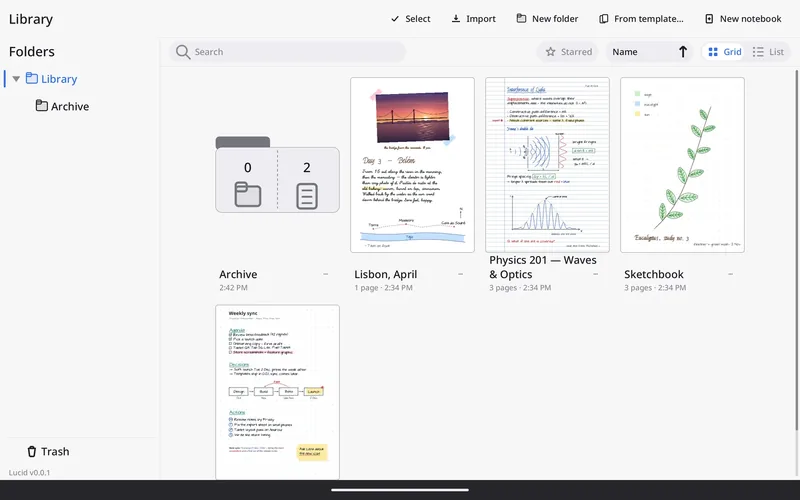
  • Make folders inside folders, and drag notebooks onto a folder — or use Move to….
  • Rename, Duplicate, Star, Export and Move to trash for one notebook or every one you pick.
  • Filter to your Starred notebooks from anywhere in the library, or Search by name.
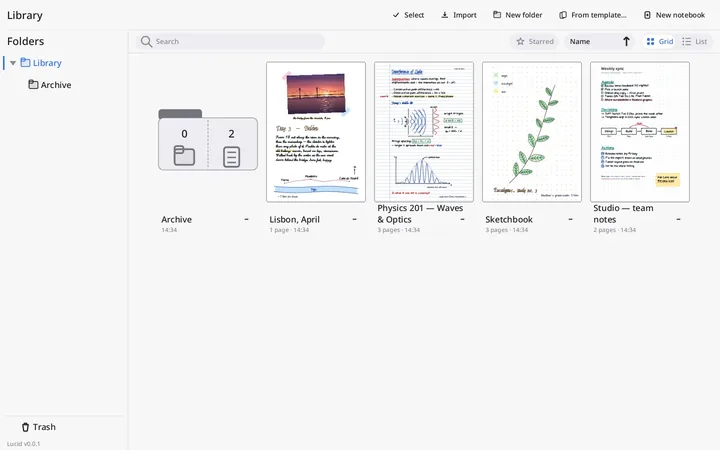
The library on a tablet: an Archive folder and four notebook covers
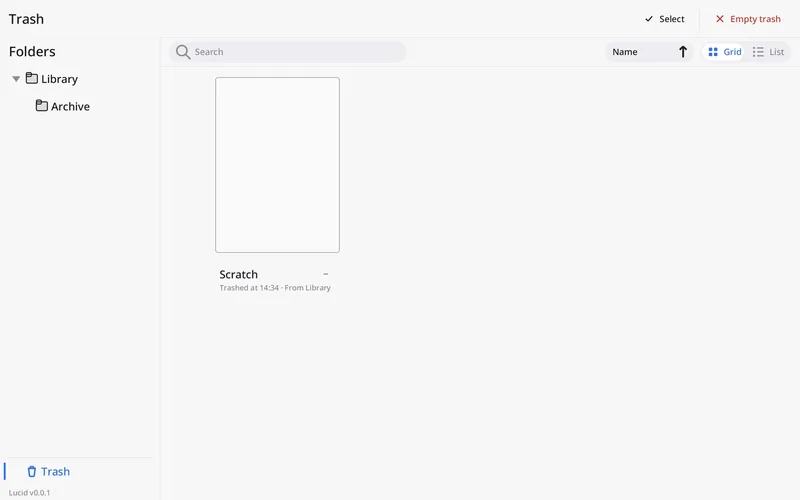
  • The library's trash, with a thrown-away notebook and where it came from

    Trash, with an undo

    Moving a notebook to the trash offers Undo straight away. Put back works any time after; emptying the trash asks first.

  • Selective import

    Open a pack and choose the sections and pages you want, and where the pieces go.

Reliability & privacy

Your work is safe, and it stays yours.

Lucid has no account, no server and no analytics. On Android it asks for no permissions at all — not even internet access. Your notebooks are files on your device, and nothing leaves it unless you share or export it.

Read the privacy policy

  • 0Android permissions
  • 0network connections
  • 0bytes collected
  • 01

    Saves as you go

    There is no save button. Every change goes to a journal first and is written out on its own thread, away from your pen. If the app is killed mid-page, the notebook comes back with your ink.

  • 02

    Pen, palm and finger

    A resting palm is ignored. The pen writes, a finger pans and pinches, the stylus’s other end and barrel button erase, and a mouse works too.

  • 03

    Opens older notebooks

    Notebooks from the earlier Lucid apps for Android and desktop open here, ink and all.

Try the pens

Write something.

A sketch of Lucid's paper in your browser: the same pens and the same fifteen rulings. Use a pen, a finger or a mouse.

This is only a rough browser sketch. Your browser's canvas draws it and your browser decides how fast your pen reaches it — nowhere near what Lucid feels like. Lucid draws with its own OpenGL renderer: smooth, anti-aliased strokes, real pressure from your stylus, and fast ink that keeps the line under the nib. The real thing is in the app.

Nothing you write here leaves your browser.

The full list

Everything Lucid does.

Write

  • Ball point, pressure and fountain pens
  • A pen tray you can add to and remove from
  • Pressure range per pen
  • Thickness on screen or on paper
  • Fast ink on Android
  • Freehand shape detection
  • 65 shapes in 8 groups, outlined or filled
  • Highlighter with strength
  • Laser pointer that fades or stays until the next stroke
  • Typed text with fonts, sizes, colours, bold and italic
  • Your own .ttf and .otf fonts
  • Right-to-left text
  • PNG and JPEG pictures

Select & edit

  • Lasso that catches only what is fully inside
  • Tap to select, tap again to dig deeper
  • Add to or take from a selection
  • Pick what to catch: strokes, shapes, images, PDFs, text
  • Select all
  • Free scale, stretch, mirror and rotate
  • One gesture, one undo
  • Restyle ink, shapes and text
  • Cut, copy, paste and the Paste chip
  • Front and back
  • Rub-out and cross-out erasers
  • Colour wheel, square, sliders, hex
  • Saved colours and eyedropper
  • Pinch zoom, fit page, fit ink, actual size

Sections & pages

  • Sections of pages
  • Contents rail with page pictures
  • Drag pages and sections to reorder or move
  • Page before, page after, new section
  • Duplicate, rename, star
  • Copy and paste pages between notebooks
  • Paper changes for many pages at once
  • Organiser grid with drag to reorder
  • Starred, Recent and search filters
  • Trash with Put back
  • Undo history per page

Paper & templates

  • 15 rulings with their own settings
  • A6 to A2, Letter, Legal
  • Custom sizes, 20 to 2000 mm
  • Endless pages
  • Portrait and landscape
  • Paper, surround, border and ruling colours
  • Actual size from your display’s density
  • Up to 24 presets of your own
  • A default preset for new notebooks

PDFs & export

  • Import PDFs page per sheet or on one sheet
  • Sharp PDFs at any zoom
  • Search and copy PDF text
  • Export PDF: notebook, page or picked pages
  • Vector ink, real text, original PDF pages
  • Export past the page edge
  • PNG at 192 dpi
  • Send to app on Android
  • .lucidnotes packs

Drag, drop & share

  • Drag in from other apps on Android
  • Drop files on the window on Linux
  • Share to Lucid from any app
  • Pictures land where dropped
  • PDFs ask how to land
  • Fonts and packs recognised
  • Paste pictures from other apps

Library

  • Folders in folders
  • Notebook pictures, grid or list
  • Sort by name, changed or opened
  • Starred filter
  • Search by name
  • Move to… and drag onto folders
  • Trash with Undo and Put back
  • Selective pack import

Reliability & privacy

  • Saves continuously through a journal
  • Survives the app being killed
  • Opens notebooks from earlier Lucid apps
  • Palm rejection
  • No account
  • No network access
  • No Android permissions
  • Nothing collected
  • Android 7.0 and later; Linux testing soon

Download

Get Lucid.

Version 0.0.3 is a testing release: expect rough edges, and keep a copy of any notebook that matters. How to back up.

Android

In testing

For tablets and phones. A stylus is best; a finger works too. Lucid is in a closed test on Google Play — join the test to install it.

Needs
Android 7.0 or later, OpenGL ES 3.0
App id
org.lucidcore.lucid
Permissions
None

Linux

Testing soon

For desktops and laptops, with a pen tablet, a touchscreen or a mouse. Linux testing starts shortly; there is nothing to download yet.

Will need
A Wayland desktop, OpenGL 3.3 or newer
  • WindowsNot yet availableComing later
  • macOSNot yet availableComing later
  • iPadNot yet availableComing later

FAQ

Questions, answered.

How do I become a tester?

Join the Lucid testers group with your Google account, open the Play testing link on your Android device and tap Become a tester, then install Lucid from Google Play. The steps are in Join the test. No Google account? Email us.

Does Lucid need the internet?

No. It never connects to anything, and on Android it does not even ask for internet access. See the privacy policy.

Do I need a stylus?

A stylus gives you pressure, palm rejection and an eraser at the other end. A finger or a mouse works too.

Does it sync between devices?

No. Move notebooks with a .lucidnotes pack: export it on one device and import it on the other.

Where are my notebooks kept?

As files on your device. On Android, uninstalling Lucid deletes them, so export a pack first. The support page has the exact folders.

Can I open notebooks from the earlier Lucid apps?

Yes. Notebooks made by the earlier Lucid apps for Android and desktop open in this one.

Can I write on PDFs?

Yes. Import a PDF as pages or drop it onto a page, write on it, search its text, and export the result as a PDF again.

Ink flickers on my tablet.

Turn off Fast ink in settings; some displays do not handle drawing straight to the screen well. Please tell us your device model.

When can I try Lucid on Linux?

Linux testing starts shortly. Email us and we’ll tell you when it does.

What about Windows, macOS and iPad?

Not yet. Lucid is in testing on Android now, with Linux next.

Pick up your pen.

Lucid is in testing on Android, with Linux soon. Questions? hello@lucidcore.org